


GUI Manager 1.0
Allows for the addition of graphical user interface elements — in the form of visible images.
 Скачать 287.4 Kb
Обновлено: Сегодня, 21:15:24
Автор: lil
Просмотров: 2
Загрузок: 0
Рейтинг: 0.0/0
Теги:
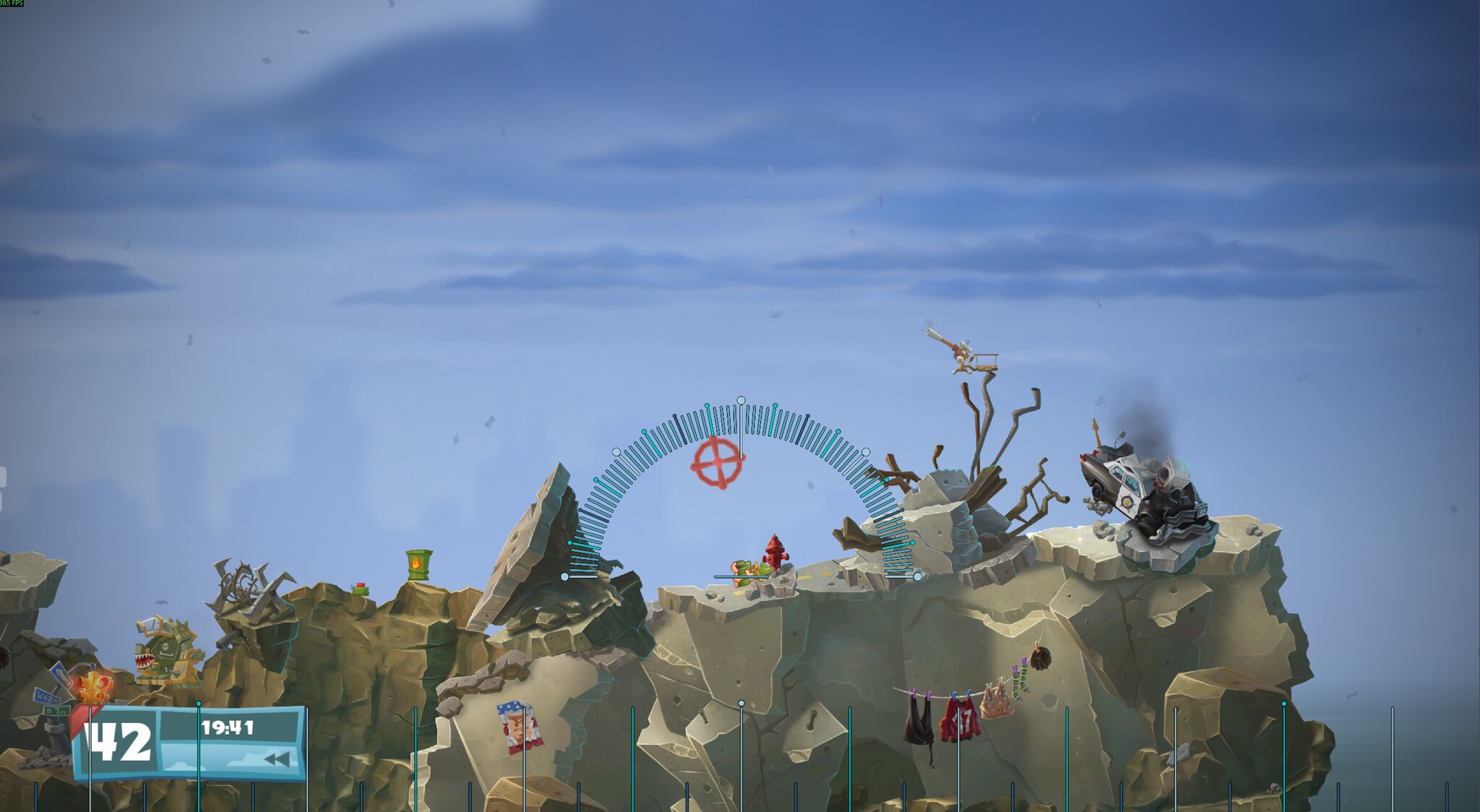
GUI Manager — это утилита, которая создает прозрачный оверлей поверх игры. Программа позволяет выводить поверх игрового процесса любые PNG-картинки (схемы, заметки, таймеры, шпаргалки). По умолчанию программа настроена для демонстраций с использованием игры *Worms W.M.D*, но вы можете создавать собственные изображения и использовать их в любой другой игре. Оверлей работает только с программами которые используют оконный режим. Ниже описание как работать с программой.
GUI Manager is a utility that creates a transparent overlay on top of the game interface. The program allows you to display any PNG images—such as diagrams, notes, timers, or cheat sheets—over the gameplay. By default, the program is set up for demonstrations using the game *Worms W.M.D*, but you can create your own images and use them in any other game. The overlay only works with programs that use windowed mode. Below is a description of how to work with the program.
Game Overlay - configuration
HOTKEYS (defaults)
F8 add the active (foreground) application
to the target process list (target_processes)
F7 remove the active application from the
target process list
F9 show / hide the overlay manually
F10 edit mode:
LMB on image and drag = move
mouse wheel over image = zoom
right edge = width
bottom edge = height
bottom-right corner = proportional resize
top-left corner = rotate
hold SHIFT = snap to 15 deg
double-click = reset rotation to 0
square near the top-right corner = toggle
visibility of the image
red cross on the right = close overlay
Press F10 again to leave edit mode.
F11 reset all images to default positions
* reload images from disk
(after replacing overlay_imgN.png)
Numpad / close the overlay (with confirmation)
To change a hotkey: edit the hex code in [Hotkeys] and
restart. Codes: F7=0x76 F8=0x77 F9=0x78 F10=0x79
F11=0x7A F12=0x7B Numpad/=0x6F. Full VK list:
https://learn.microsoft.com/windows/win32/inputdev/virtual-key-codes
============================================================
TARGET APPLICATIONS
============================================================
The overlay is shown ONLY when one of the applications
from target_processes is active. Otherwise it is hidden
(except in edit mode).
How to fill the list:
A) Start the game, Alt-Tab into it, press F8.
The program appends the process name here.
To remove: activate the app, press F7.
 Manually below. Names are lowercase, exactly as in
Task Manager -> Details tab -> 'Image name' column.
Example: notepad.exe
Multiple applications are separated by semicolon ';'.
Example: game.exe;launcher.exe
'*' (asterisk) => overlay on top of ANY window.
'-' (minus) => no targets, overlay always hidden.
Empty value is NOT supported: Win32 API
(WritePrivateProfileString) deletes the key when writing
an empty string, so the next launch restores defaults.
============================================================
IMAGES
============================================================
Slots 1-2 have BUILT-IN images (embedded into the .exe).
Slots 3-4 are empty by default.
To replace or add an image:
Place a PNG with alpha next to the .exe:
overlay_img1.png
overlay_img2.png
overlay_img3.png
overlay_img4.png
Press * (or restart the overlay).
A file next to the .exe takes priority over the embedded
image. If the file is absent, the embedded image is used
(slots 1-2) or the slot remains empty (3-4).
============================================================
LAYOUT
============================================================
Format: imgN = x y w h rot vis
x, y - top-left corner of the UNROTATED bounding box
w, h - width and height of the UNROTATED bounding box
rot - rotation in degrees, clockwise, 0..360
(drag the TOP-LEFT corner in edit mode;
hold SHIFT for 15 deg steps;
double-click the handle to reset to 0)
vis - 1 = visible, 0 = hidden (toggle with the
small square near the top-right corner of
the image in edit mode). Optional, defaults to 1.
Units: DIP (logical pixels at 96 DPI), relative to the
top-left corner of the TARGET application's MONITOR
(not physical pixels - on monitors with 125%/150%
scaling they differ).
Values are overwritten automatically when leaving edit
mode (F10 off) and on exit.
You can edit them manually, but it is easier to move
the images with the mouse.
If the size is 0 0 0 0 - the slot is empty and not drawn.
The rot and vis fields may be omitted (default 0 and 1).
============================================================
FAQ
============================================================
Q: The overlay started but I see nothing.
A: Most likely the active application is not a target.
Switch to the game - the overlay will appear.
Q: The overlay does not react to the mouse.
A: That is expected outside edit mode -
clicks pass through to the game. Press F10.
Q: Where did my layout go?
A: If the file was missing, defaults are loaded.
Q: Can I run a second instance?
A: No, a second launch just shows the running one.
============================================================
Всего комментариев: 0
 Категории
 Статистика


 0

 Друзья сайта

